Depth Views
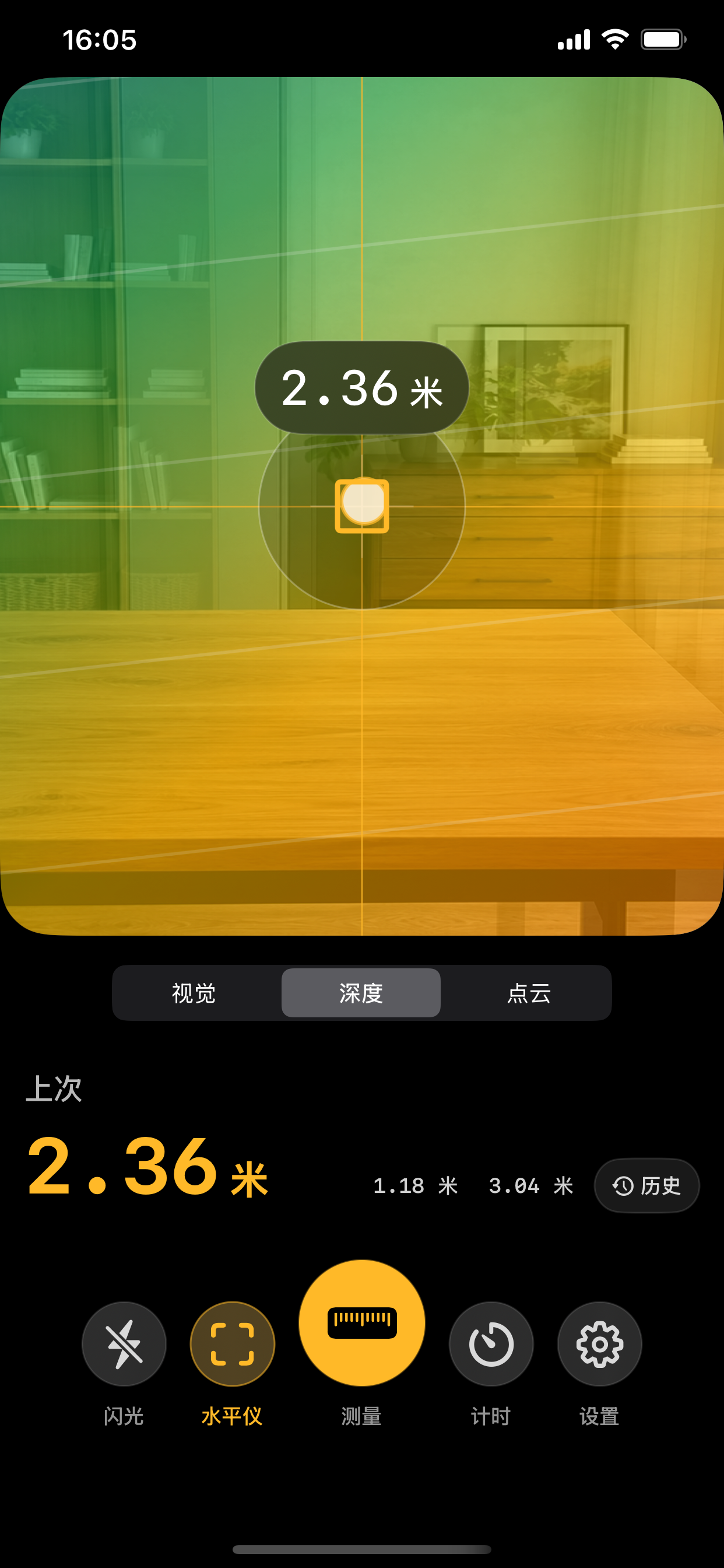
Use the camera view, depth heatmap, and point cloud mode to understand which surface the center point is sampling.
View depth modes LiDAR Measure
Technical Support
LiDAR Measure
Technical Support
Support Center
LiDAR Measure is a native iPhone and iPad app for quick distance measurement using ARKit scene depth. This page covers device requirements, permissions, saved history, troubleshooting, and privacy.
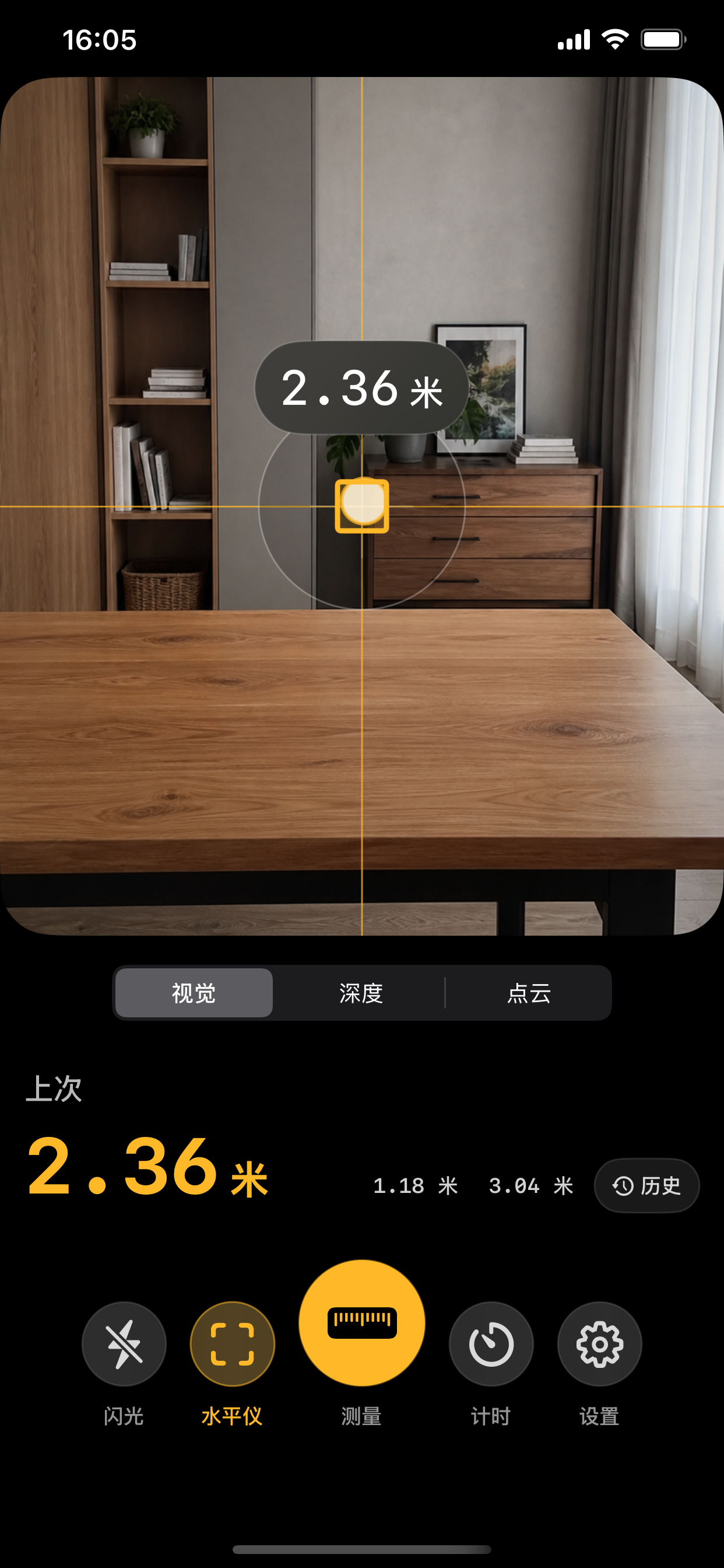
Use the camera view, depth heatmap, and point cloud mode to understand which surface the center point is sampling.
View depth modesLighting, reflective surfaces, distance, camera motion, and confidence filtering can affect the current reading.
Improve readingsMeasurements, notes, settings, and snapshots are stored locally on your device unless you choose to email support.
Read privacy noticeDepth Views
LiDAR Measure uses ARKit world tracking with scene depth and smoothed scene depth. Switch between the camera view, depth heatmap, and point cloud view when you need to understand the target surface before saving a measurement.
History
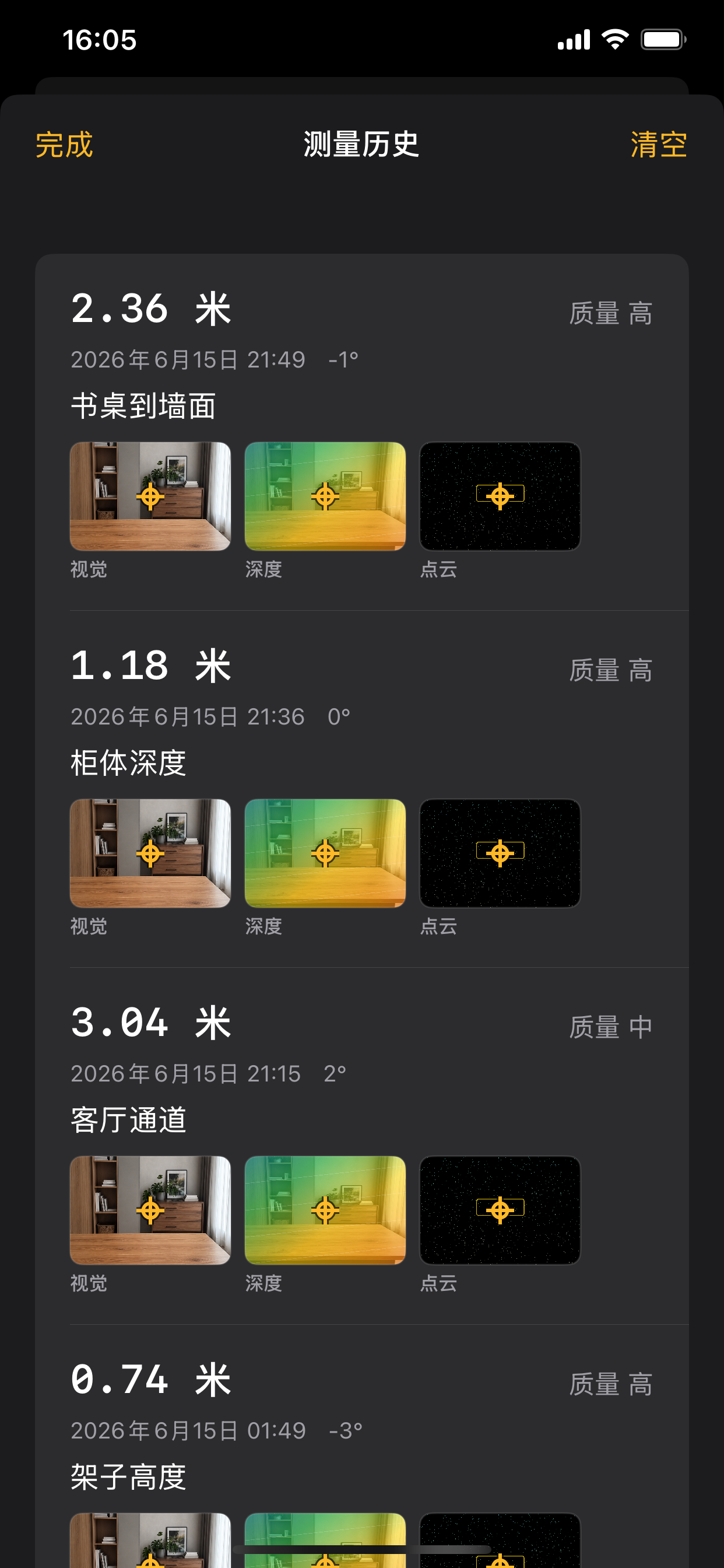
Saved records keep the measured distance, quality label, angle reference, optional note, and visual snapshots together. You can review recent measurements locally and clear history when you no longer need it.
FAQ
The app needs a physical iPhone or iPad with a LiDAR scanner. It also needs camera permission. If you are using a simulator, a non-Pro iPhone, or a device without LiDAR, depth measurement cannot start.
Hold the device steady, keep the target near the center crosshair, avoid glass or mirror-like surfaces, and try a larger sample window or stability-first preference in Settings. Better lighting can also improve AR tracking.
Quality is based on the available depth samples around the crosshair and their confidence. A low quality label means the app had fewer usable depth samples, so you should re-aim, move closer, or change the surface.
Saved distance records, notes, settings, and measurement snapshots are stored locally on your device. History is capped to keep storage reasonable, and you can clear it from the History screen.
LiDAR Measure is a quick reference tool, not a certified measuring instrument. For construction, medical, legal, safety, or other important decisions, verify results with calibrated equipment and qualified professionals.
Privacy
LiDAR Measure does not use advertising SDKs, analytics SDKs, or cross-app or cross-website tracking. The app uses camera, motion sensors, optional photo library add permission, local storage, and system speech playback to provide its features.
Contact
When reporting an issue, include your device model, iOS or iPadOS version, LiDAR Measure version, whether camera permission is enabled, and steps to reproduce. Please avoid sending private photos, addresses, or sensitive measurement notes unless they are necessary.